
I cannot view PDFs in my Google Chrome browser.


Are you trying to view a PDF document, but it only gives you the option to download? Don't worry, you can change your Chrome browser settings so that you can view PDFs as well as download them. Here's how to do it:
Step 1
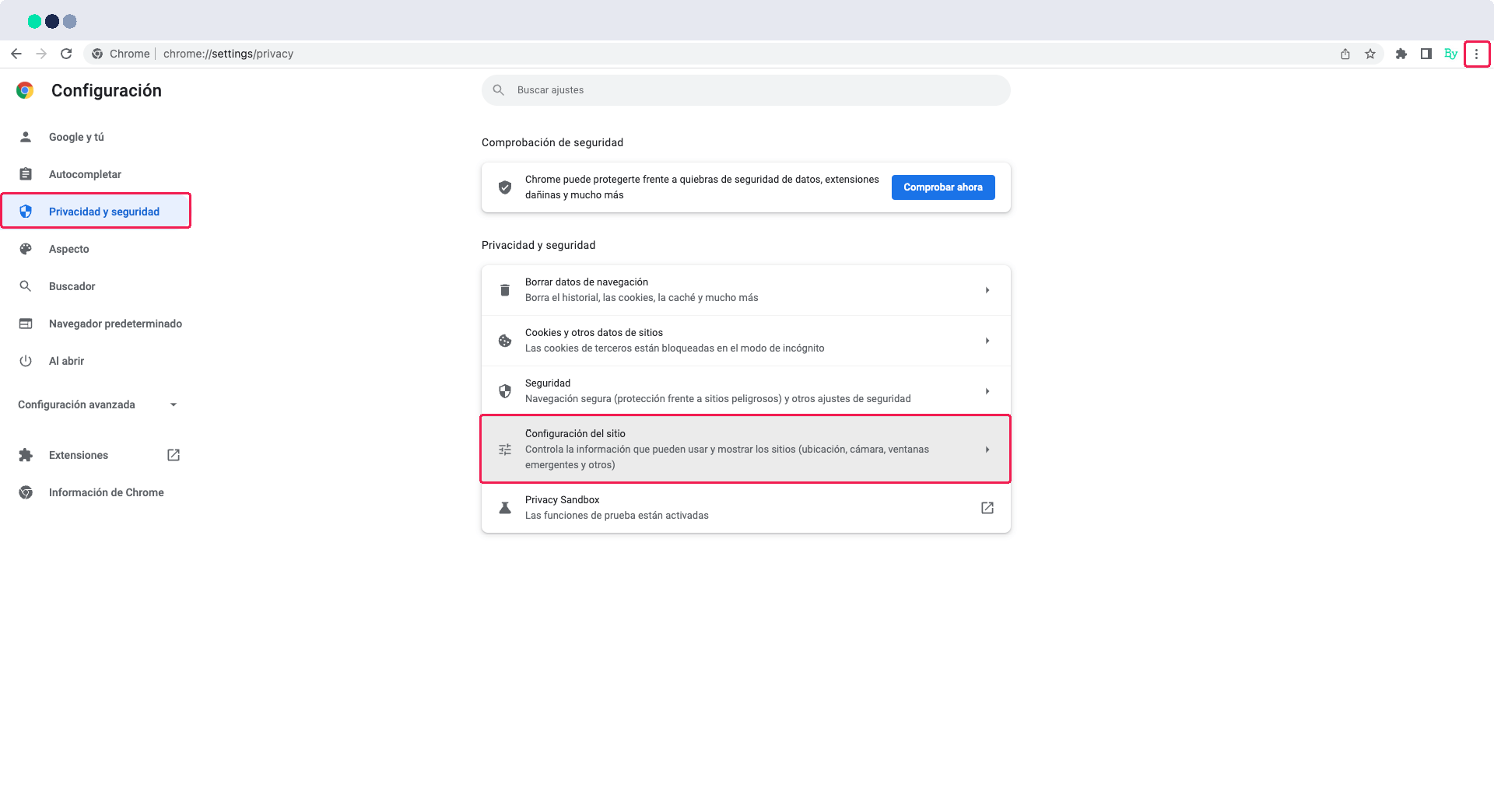
To access the Chrome browser settings, go to the top right corner. We will find an icon with three vertical dots. Click on it and a drop-down will appear in which you must select the option ‘Configuration’.
Step 2
Once in the configuration, on the left side of the screen, look for the option ‘Security and privacy’ and select it. Among the different options look for ‘Site Configuration’ and access it.
Step 3
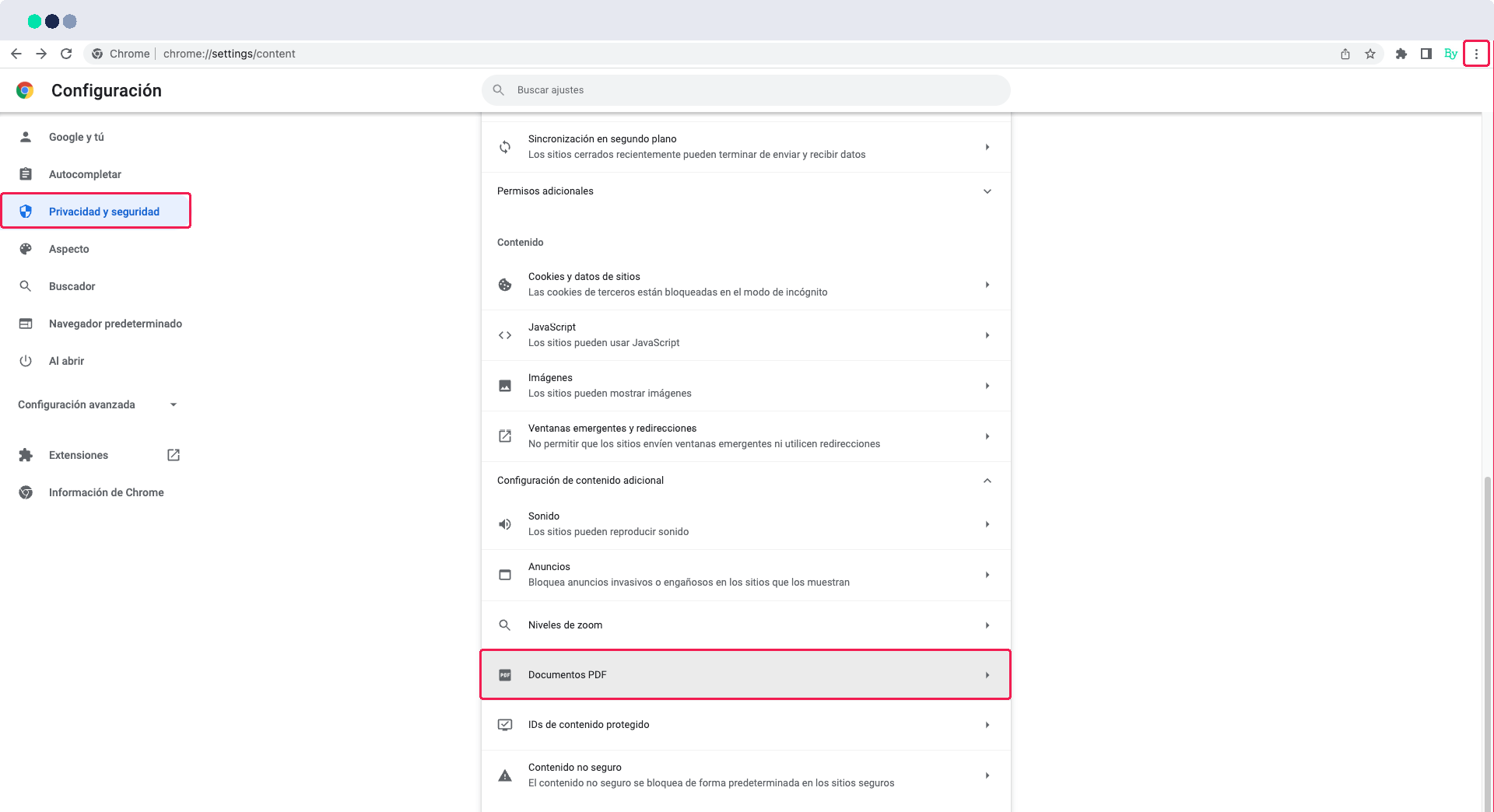
Once in the site configuration, look for the option ‘Additional content configuration’ (which is usually among the last options), and click to display the options. Here you will find the option to ‘PDF Documents’. Unfold this section.
Step 4
Once here, be sure to check the option ‘Open PDF files in Chrome’. From now on you will be able to preview the files directly in your browser without downloading them.
