
How can I import my customer's chart of accounts?


For correct use of the Accounting Module it is absolutely essential that import your customer's PGC and its customer and supplier file. This configuration can be done massively through Excel files. We show you how to do it.
Step 1
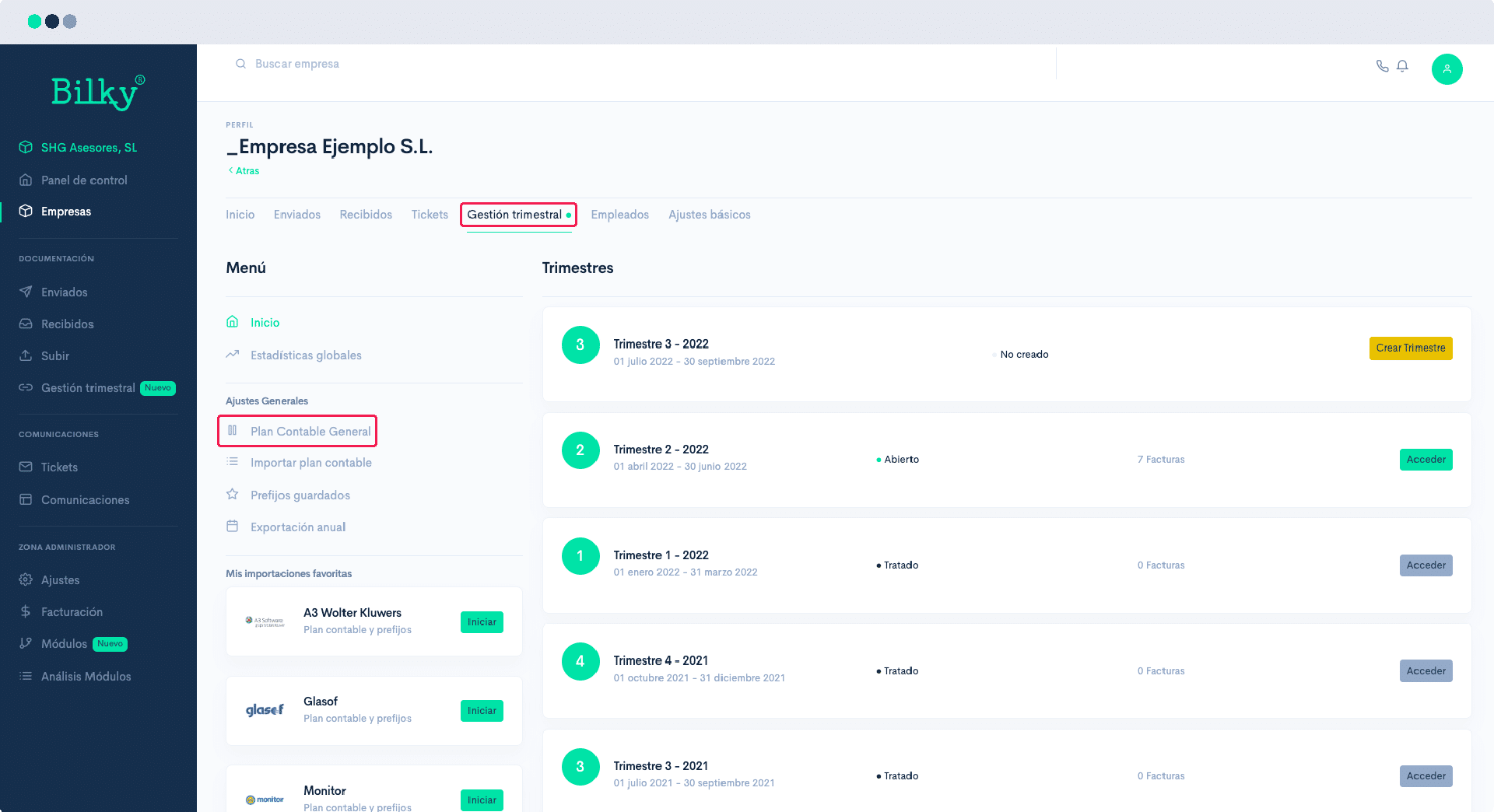
Access your customer's profile and, subsequently, to the 'Accounting Management'. In the Menu column you will find the 'General Settings', and among them the Import Chart of Accounts' option.
Step 2
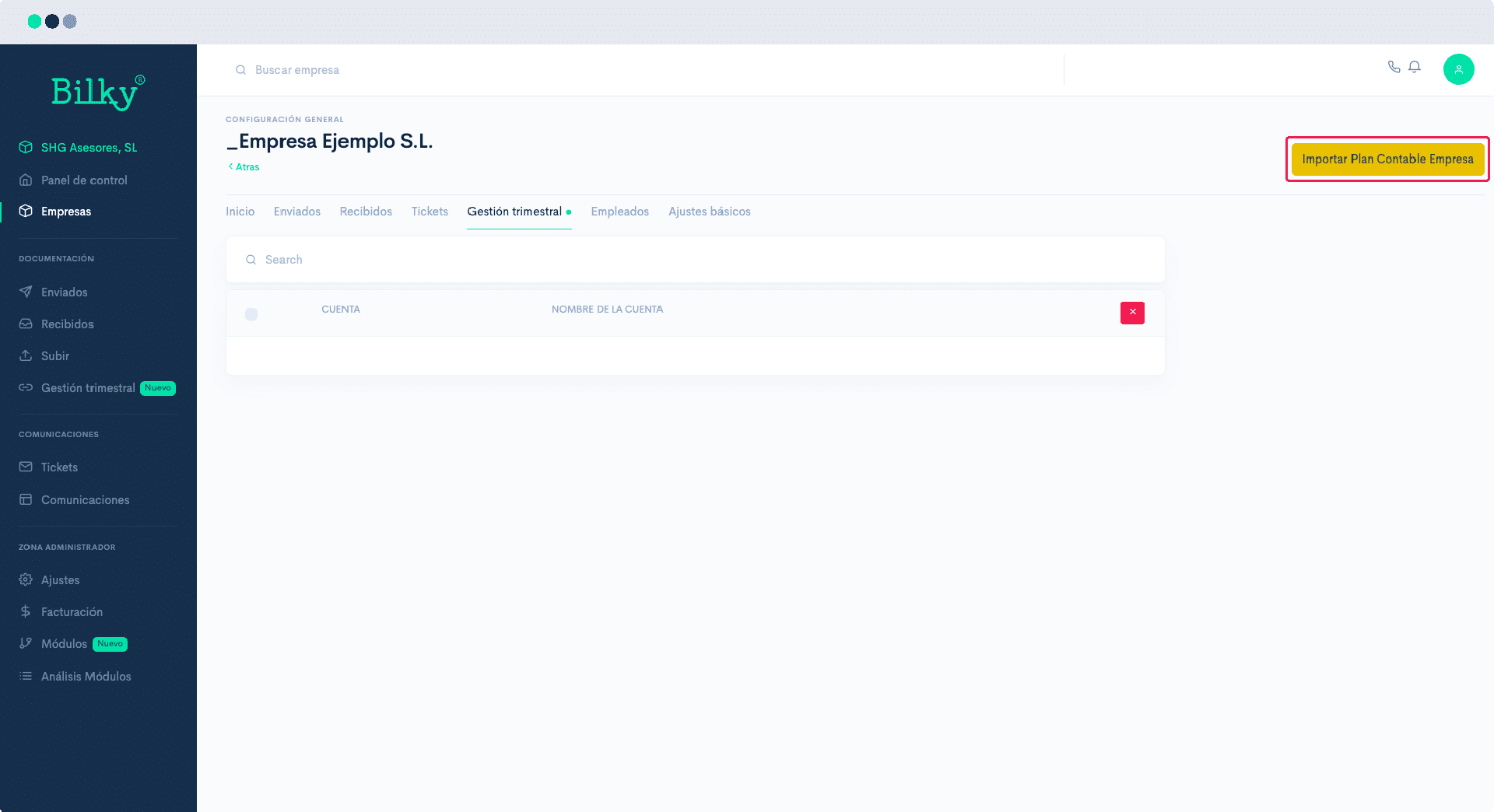
In the upper right corner, click on the ‘Import Chart of Accounts Company’.
Step 3
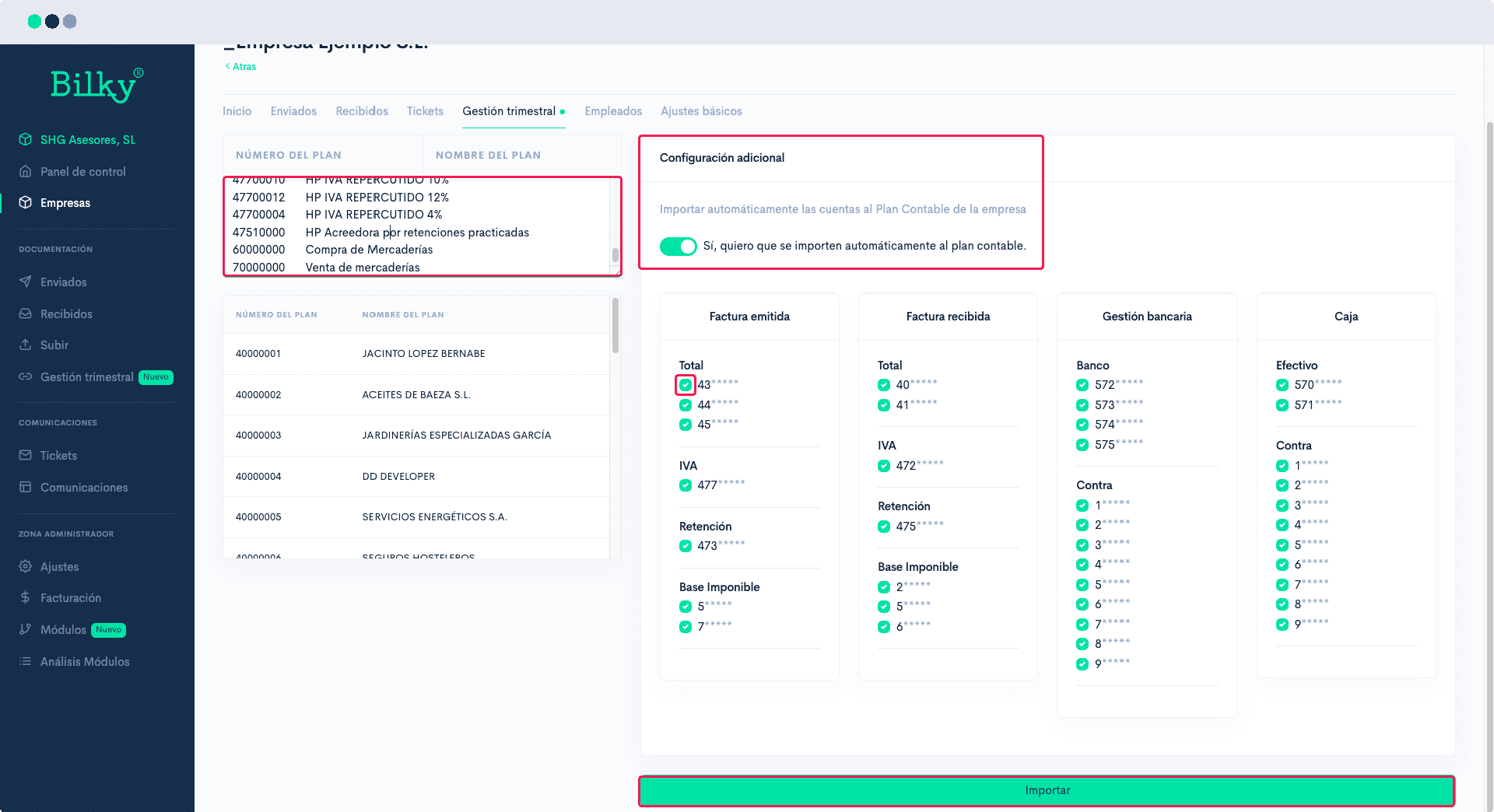
Previously, download from your accounting software an Excel file with the PGC of your customer. It must contain two columns, where the first one is the account/subaccount number, and the second one the description.
Copy the data from Excel and paste it into the box provided, and activate ‘Additional configuration’ so that the accounts are automatically imported into the Chart of Accounts in Bilky.
If you do not want any of the accounts or groups to be imported, uncheck them individually.
Once you are finished, click on the button ‘Import’.
Step 4
Your customer's PGC will be imported.

Step 5
You can also check, manage or add and delete accounts by following the path Customer Profile - Accounting Management - General Chart of Accounts.
Step 6
Create, delete accounts or restore the Chart of Accounts from this section at any time.
