How can I add the Cash movements for my Advisor?


In the Trimestra ManagementIn addition to uploading your quarterly invoices to your Advisor, you can also manage bank and cash entries. In the case of Cash notes, you can either manually pick them up or import them in bulk in a simple way. We show you how to do it:
Step 1
Place yourself in the Zone Advisors and enter the Quarterly management.
Step 2
Access the quarter for which you want to add the cash movements.

Step 3
In the top menu you will find the option Banking Management y Cash management.

Step 4
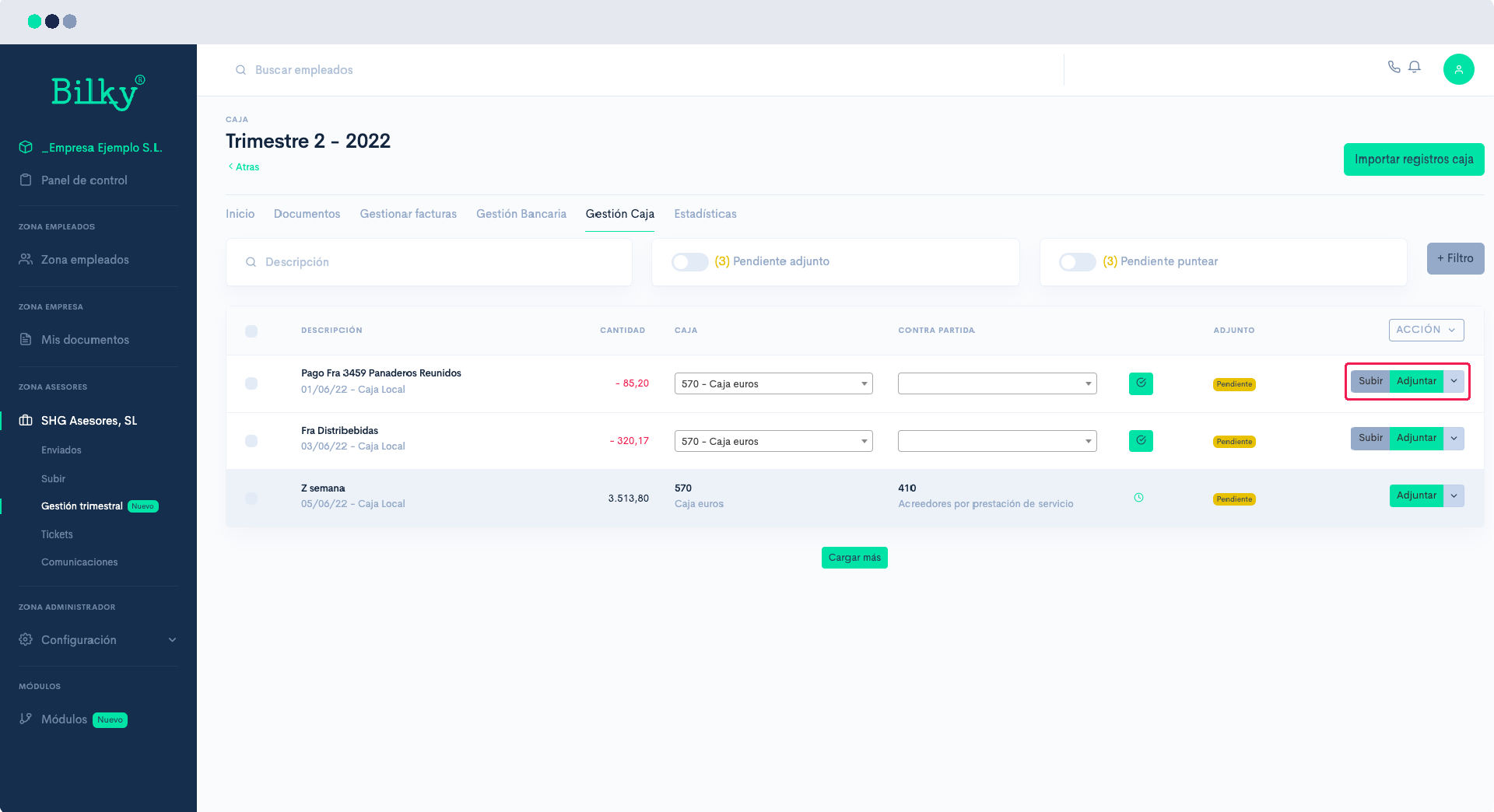
If we want to import the Box, we will go to Cash Management, and in the upper right corner we will find the option Import cash registers.

Step 5
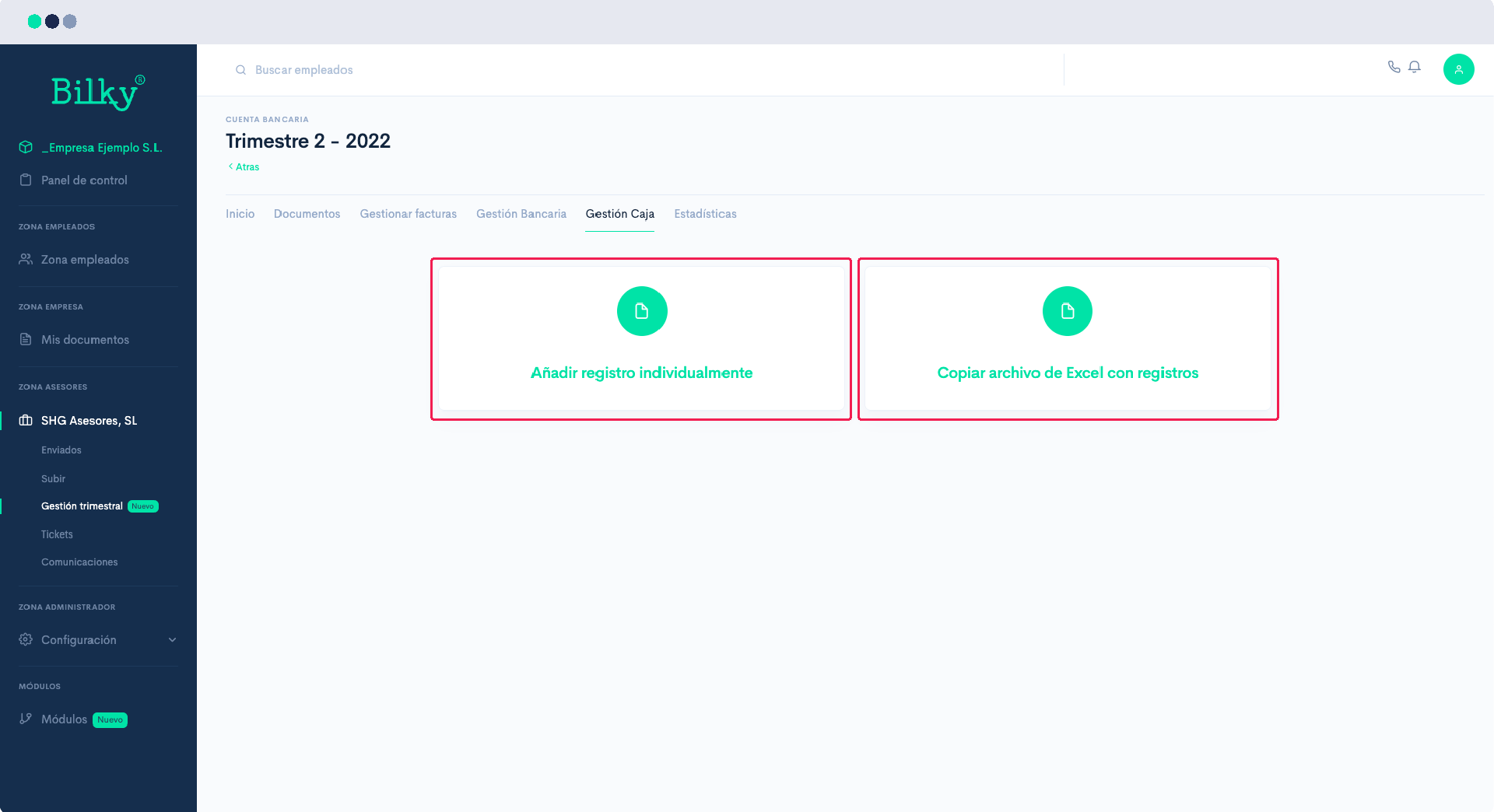
Choose whether to add the information record by record by clicking on the data or, alternatively, by importing it massively from an Excel file.
Step 6
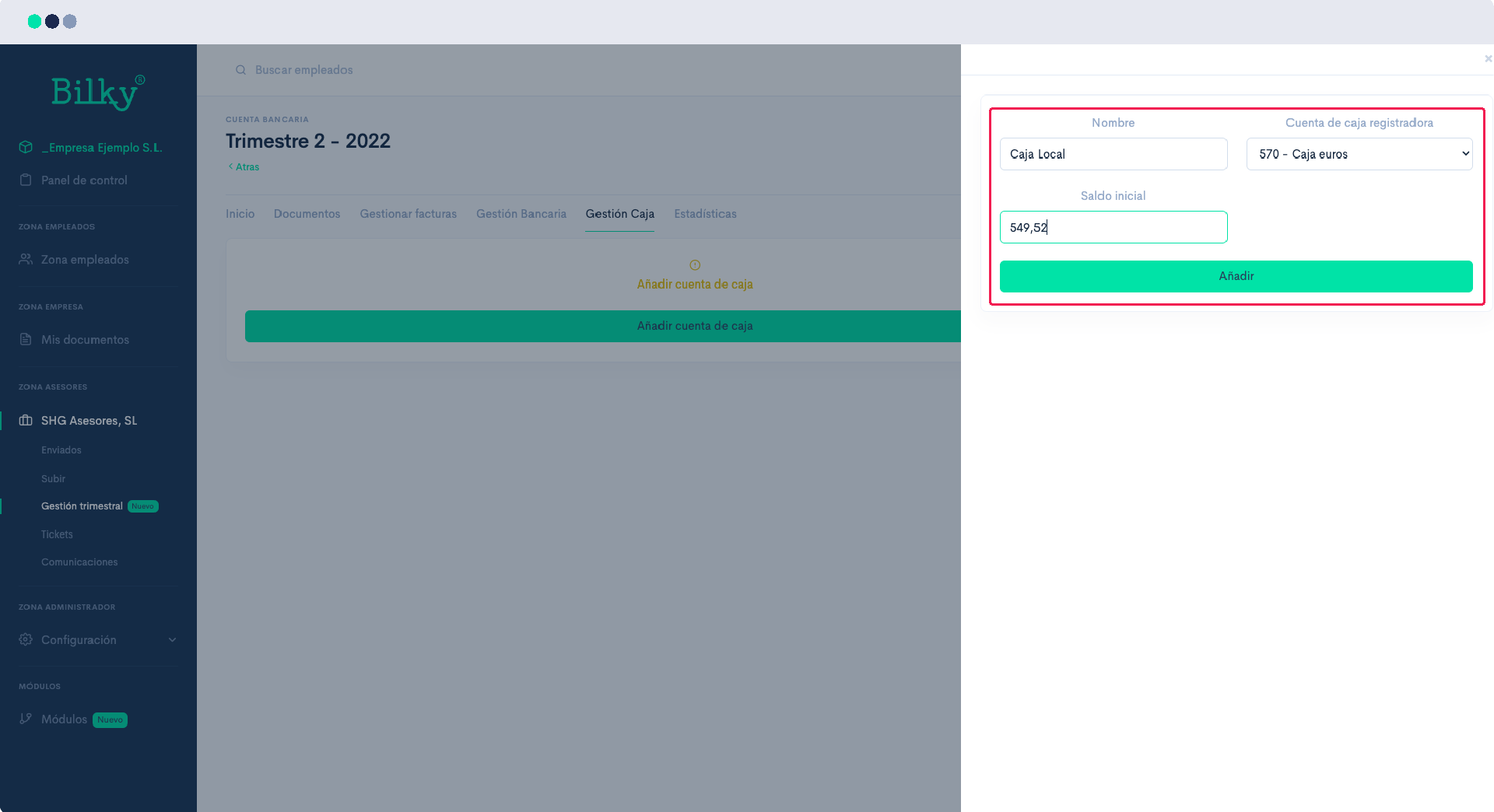
If you have not yet created a Cash account, when you select how you are going to add the records you will be able to add the account. Simply click on Add and adds the name, the account and the initial balance. Remember that you can add as many boxes as you wish.
Step 7
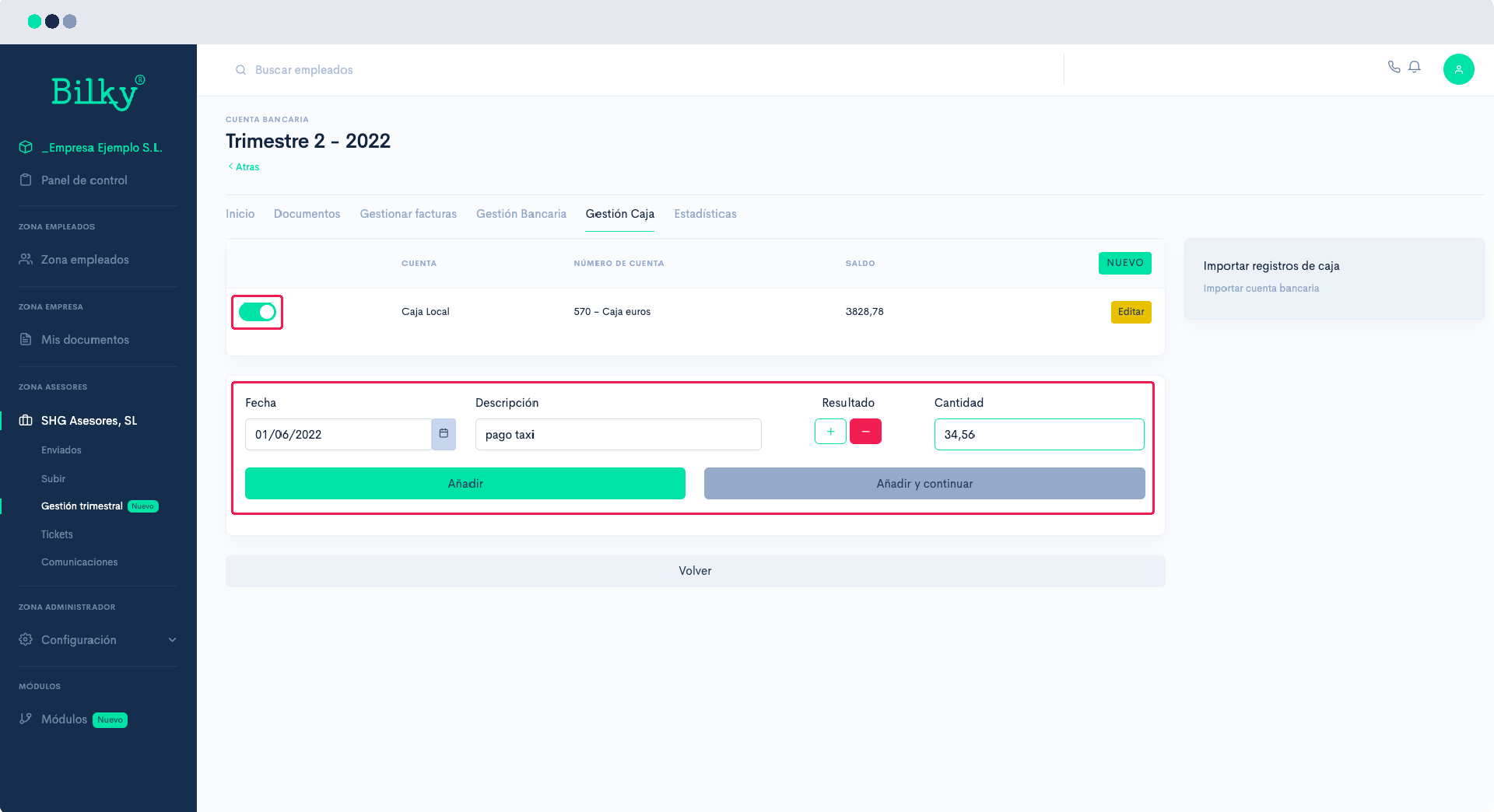
If you have chosen to add the records individually you must mark the date of the movement, add the description, mark whether it is a cash inflow or outflow and the amount. You can Add o Add and Continue if you are going to reflect more records. Remember to check which box they correspond to the movements if you have several.
Step 8
If you have chosen to import the records through an Excel file, open your file with the cash movements, and verify that they have the necessary format and order for the import (Date/Description/Quantity).. Select the lines you want to import, copy and paste them into the box. Remember mark the box to which they correspond the movements if you have several. Click on Import Cash Statement.
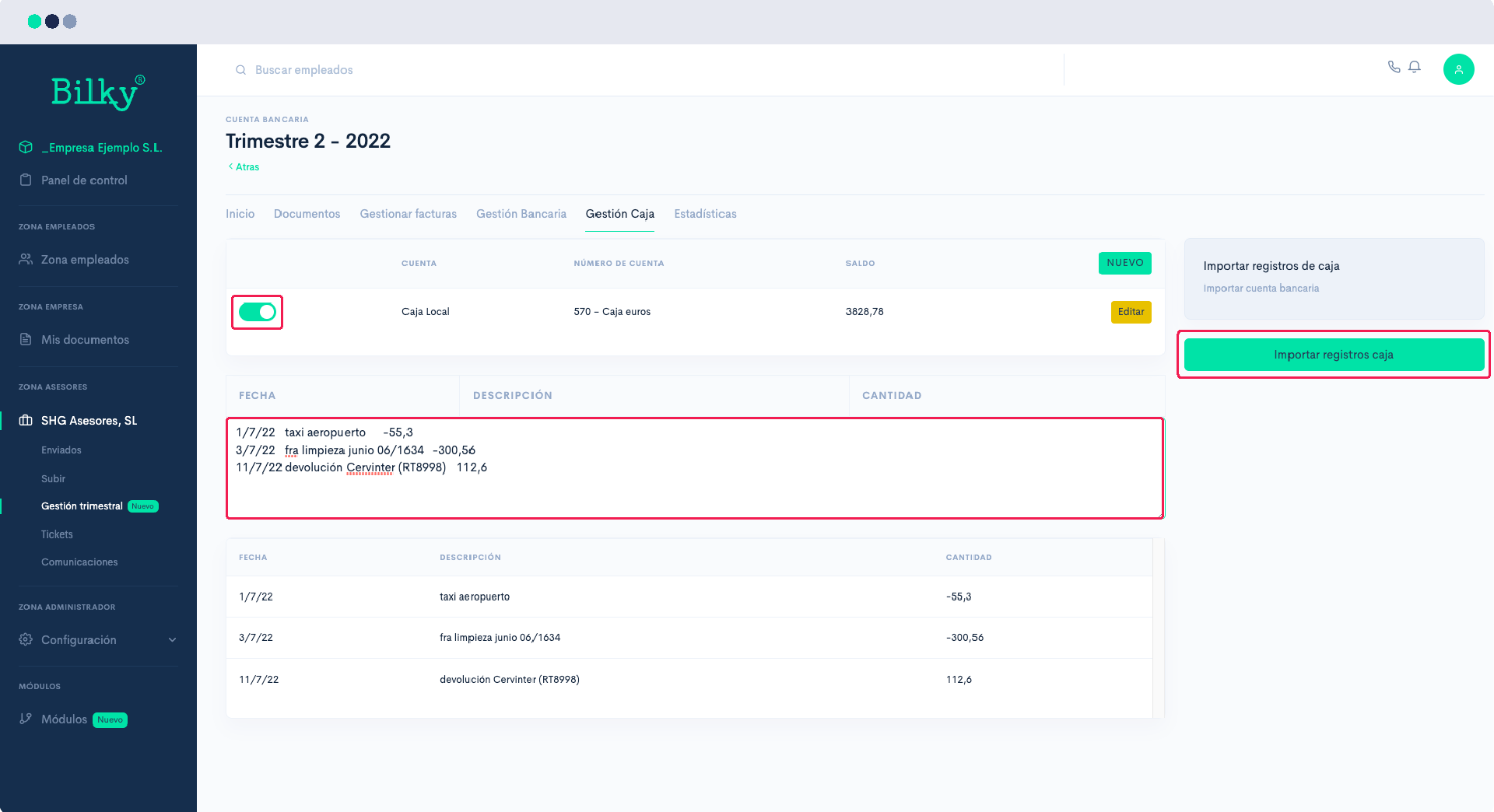
Step 9
The transactions will have been imported correctly and will be ready for your consultant to click on the counterpart and match each transaction with its invoice through the attached button. If you wish you can also do it yourself.