
How can I add my customer's cash movements?


In the Accounting Management of the company, you can not only upload the invoices of the quarter but also manage the Bank and Cash entries. In the case of Cash notes can be either manually input or imported in bulk. easily if they have not been added by your customer. We show you how to do it:
Step 1
Go to your customer's profile, in the section of 'Accounting Management', and access within the quarter you wish to manage. In the upper menu you will find the options of 'Banking Management' y 'Cash Management'.
Step 2
If we want to import the Box, we will go to ‘Cash Management’, and in the upper right corner we will find the option ‘Import Box Records’.

Step 3
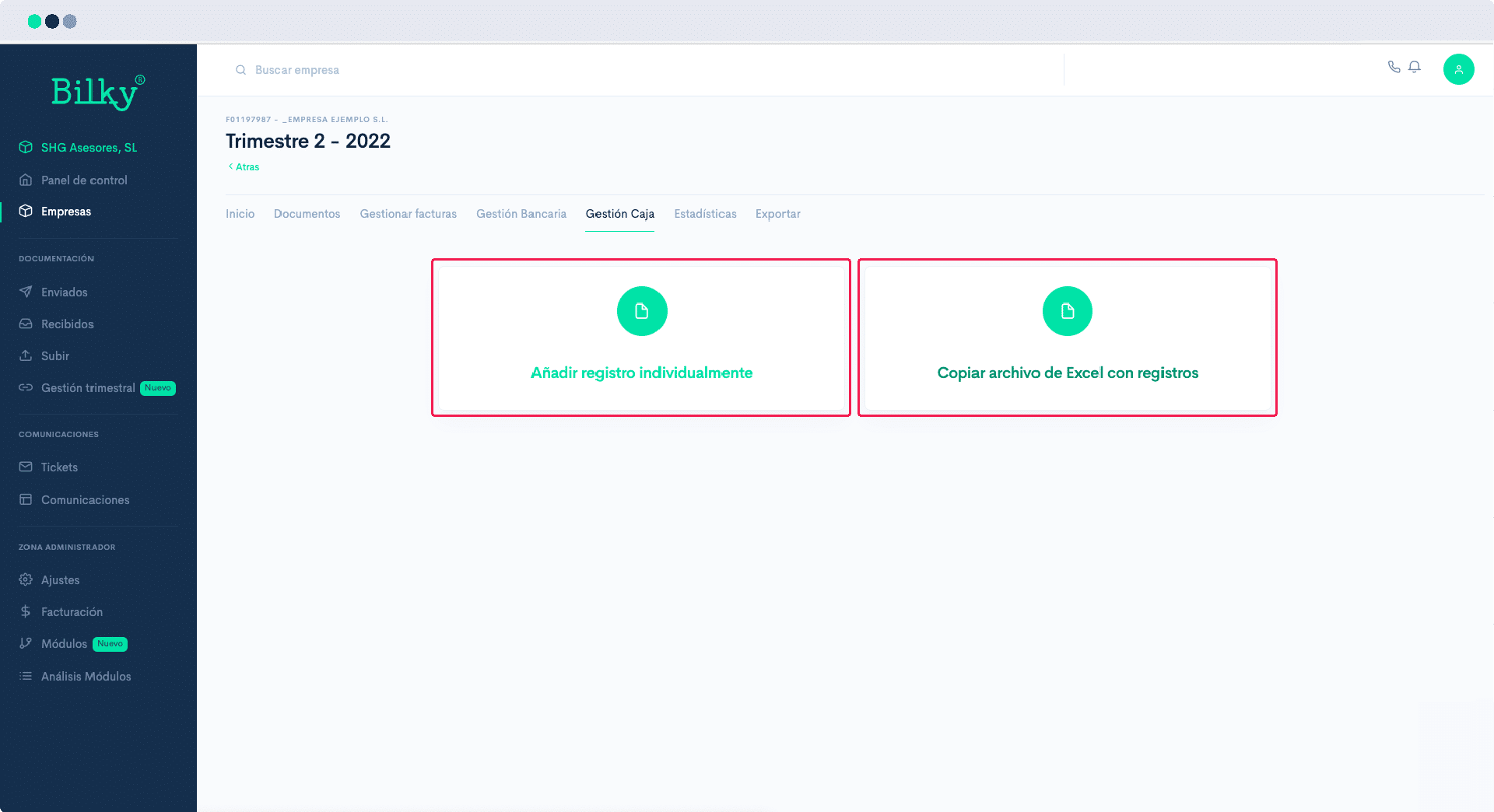
Choose if you are going to add the information record by record by clicking on the data, or if you are going to import it massively from an Excel file.
Step 4
If you have not yet created a Cash account, when you select how you are going to add the records you will be able to add the account. Simply click on ‘Add’ and add the name, account and initial balance. Remember that you can add as many boxes as you wish.

step 5
If you have chosen to add the records individually you should mark the date of the movement, add the description, mark whether it is a cash inflow or outflow and the amount. You can ‘Add’ o ‘Add and continue’ if you are going to reflect more records.
Remember to check which box they belong to the movements if you have several.

Step 6
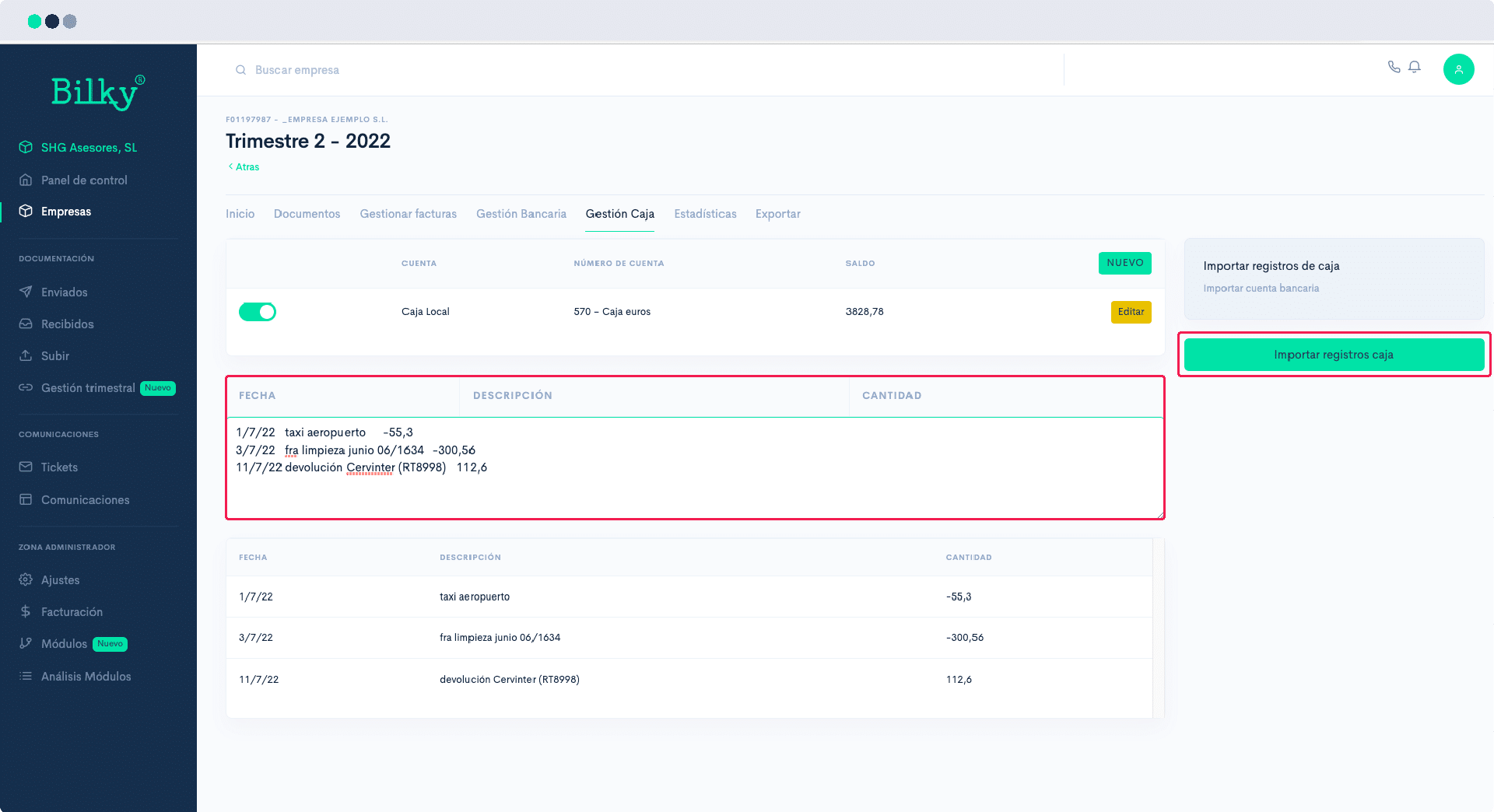
If you have chosen to import the records through an Excel file. Open your file with the cash movements and verify that they have the necessary format and order for the import (Date/ Description/ Quantity).
Select the lines you want to import, copy and paste them into the box. Remember to mark which box the movements correspond to if you have several. Click on ‘Import cash register’.
Step 7
The transactions will have been imported correctly and will be ready for you to click on the counterpart and match each transaction with its invoice through the button ‘Attachment’.
