How can I add my client's bank transactions?


In the Accounting Management of the company, you can not only upload the invoices of the quarter but also manage the Bank and Cash entries. In the case of Bank notes can be massively imported easily if they have not been uploaded by your client. We show you how to do it:
Step 1
Go to your customer's profile, in the section of Accounting Management, and within the quarter you wish to manage. In the upper menu you will find the options of 'Banking Management and Cash Management'.
Step 2
If we want to import the Bank we must go to the section of ‘Banking Management’ and in the upper right corner we will find the option of ‘Import Bank Statement’.

Step 3
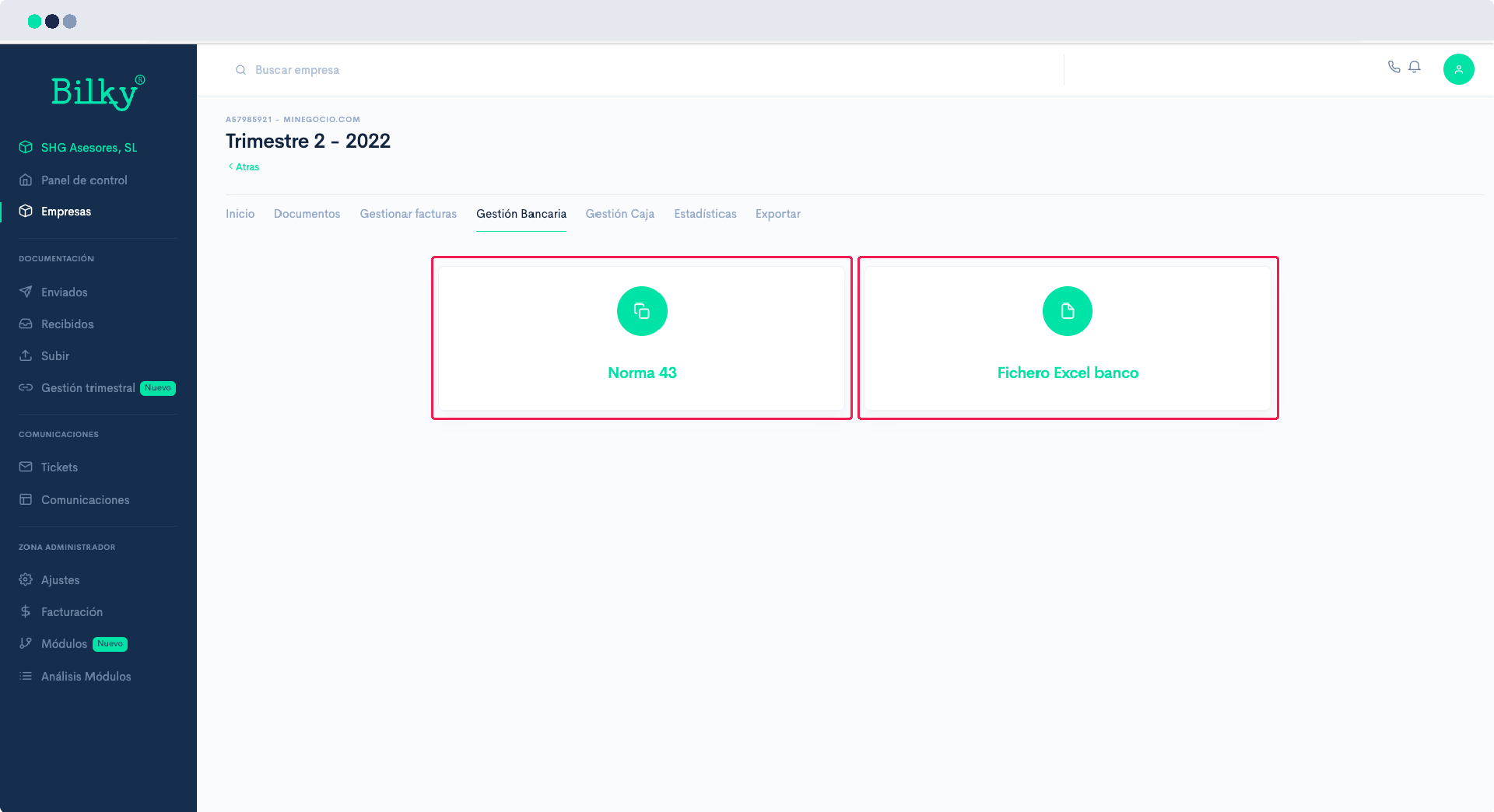
Choose whether you are importing the information from a file ‘Rule 43’ or from an ‘Excel file’.’.
Step 4
If you are going to import the information from a Norma 43 file, simply add the file and select the corresponding account. Remember that if you have configured your client's chart of accounts, all their bank accounts will appear here.

Step 5
If you are importing the information from an Excel file and you have not yet created bank accounts, you will need to add them. Just click on ‘Add bank account’ and adds the IBAN and the corresponding account. You can create as many as you wish.

Step 6
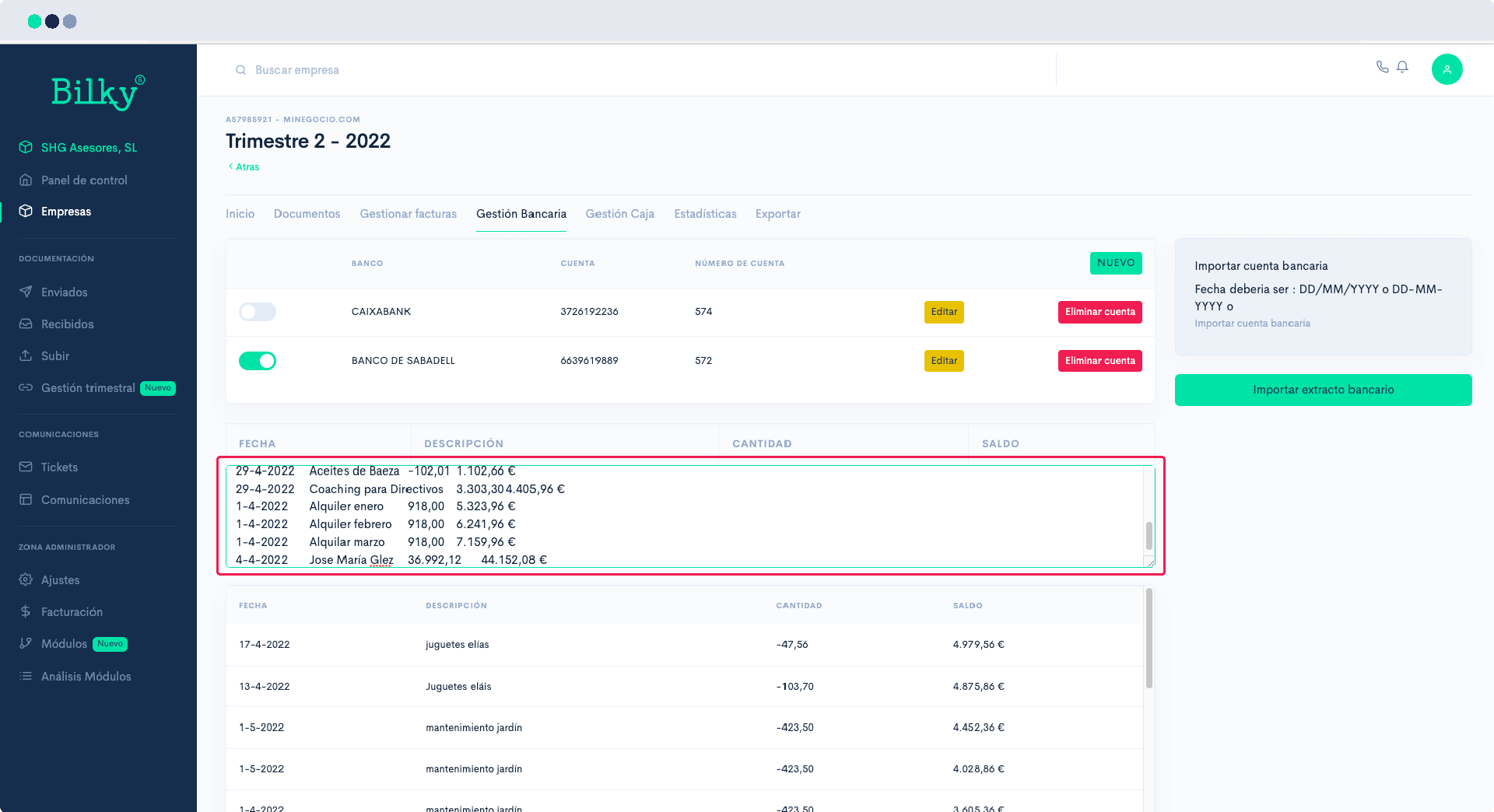
Open your Excel file with the bank transactions and verify that they have the necessary format and order for the import. (Date/Description/Quantity/Balance). Select the lines you want to import, copy and paste them in the box. Remember to mark which bank the movements correspond to. Click on ‘Import bank statement’.
Step 7
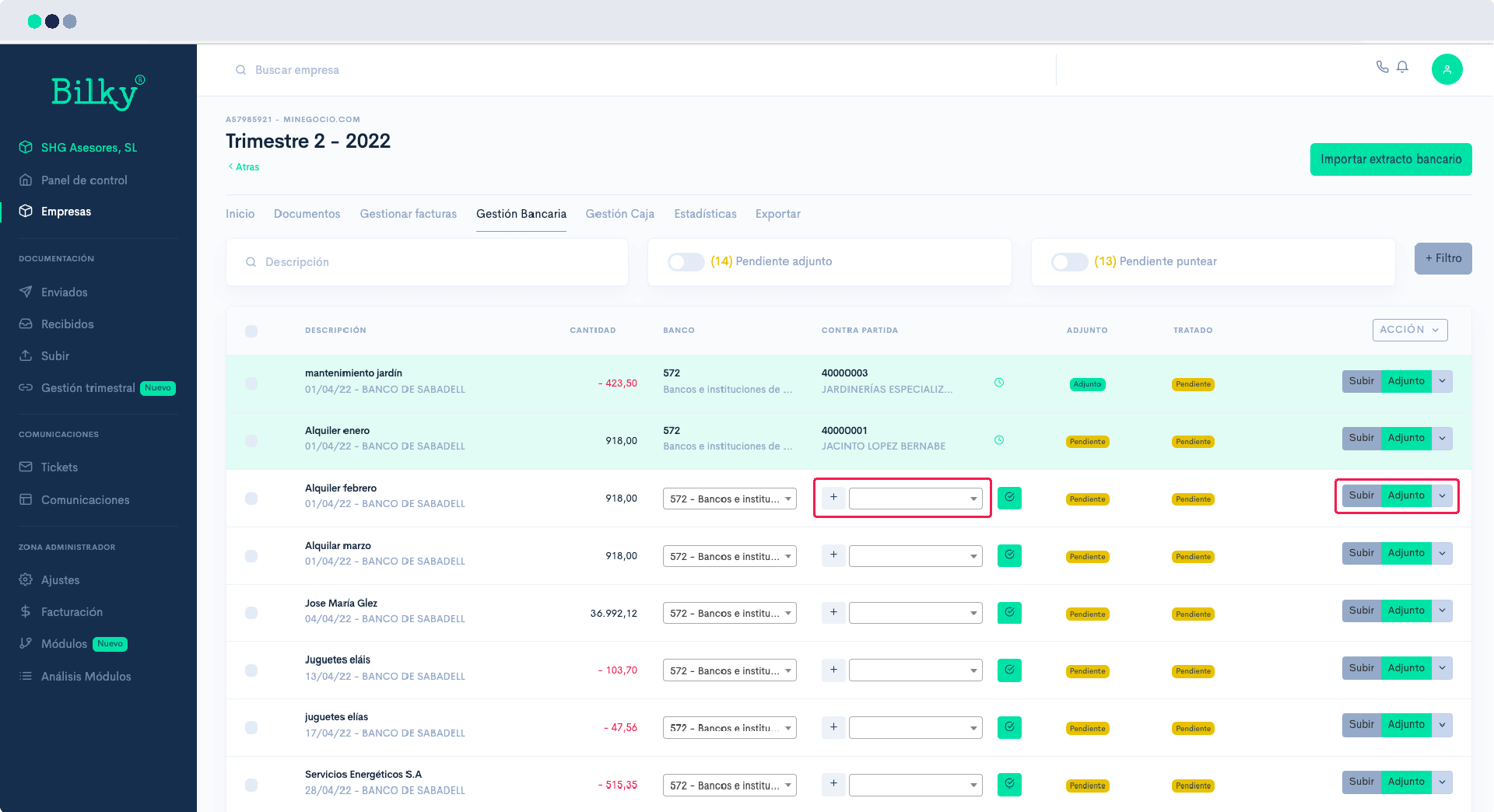
The transactions will have been imported correctly and will be ready for you to click on the counterpart and match each transaction with its invoice through the button ‘Attachment’.